

Authentication
Every Novi credential type side by side, where each is used, how long it lasts and how to rotate it.
Each product takes its own credential today.
Compare credentials
Section titled “Compare credentials”- Used for
- Novi UDM Data reader account: Snowflake web interface, drivers, BI tools
- How you send it
- Snowflake sign-in
- Lifetime
- A temporary password you change at first sign-in
- Rotate or revoke
- Not published yet
- Used for
- Novi UDM Data shared into your Snowflake account
- How you send it
- Your Snowflake sign-in
- Lifetime
- Your account’s policy
- Rotate or revoke
- Your Snowflake administrator
- Used for
- Novi UDM Data over HTTPS
- How you send it
Authorization: Bearerheader- Lifetime
- Reader-account starter token: 14 days by default. Replace it with a 365-day token
- Rotate or revoke
- Remove and add the token with
ALTER USER
- Used for
- Novi UDM Data BI or lakehouse connection
- How you send it
- Private key file in your tool
- Lifetime
- While your subscription is active. The download link lasts 72 hours
- Rotate or revoke
- Not published yet
- Used for
- Novi Forecasts API and its MCP server, M&A Intelligence MCP server
- How you send it
Authorization: Bearerheader- Lifetime
- 1 to 365 days. The Forecasts app offers 7, 30 or 90 days, 1 year, or custom; 90 days is the default
- Rotate or revoke
- Revoke on the API tokens page; it stops working within two minutes. Create a new one to rotate
- Used for
- MCP servers for Forecasts, EVA and M&A Intelligence
- How you send it
- Your assistant signs you in
- Lifetime
- 30 days
- Rotate or revoke
- Sign in again. Removing Access MCP cuts access within about two minutes
- Used for
- Novi EVA REST API
- How you send it
x-api-keyheader- Lifetime
- Not published yet
- Rotate or revoke
- Not published yet
Keep every credential in an environment variable or a secret manager. Never put one in code, a URL or a shared notebook. See Security.
Snowflake login and token
Section titled “Snowflake login and token”In a reader account, each person gets a login by welcome email and signs in with role DATA_READER. For SQL over HTTPS, send a programmatic access token as a bearer token to your account URL followed by /api/v2/statements.
curl -X POST "$NOVI_SNOWFLAKE_URL/api/v2/statements" \ -H "Authorization: Bearer $NOVI_SNOWFLAKE_TOKEN" \ -H "Content-Type: application/json" \ -d '{"statement": "SELECT COUNT(*) FROM NOVI_WELLS.WELL", "warehouse": "NOVI_WH", "database": "NOVI_DATA_ACCESS"}'The reader-account starter token lasts 14 days by default: replace it with a one-year token. On your own Snowflake account, the setup script’s optional step issues the token.
Novi API token
Section titled “Novi API token”A Novi API token acts as one person, with that person’s access.
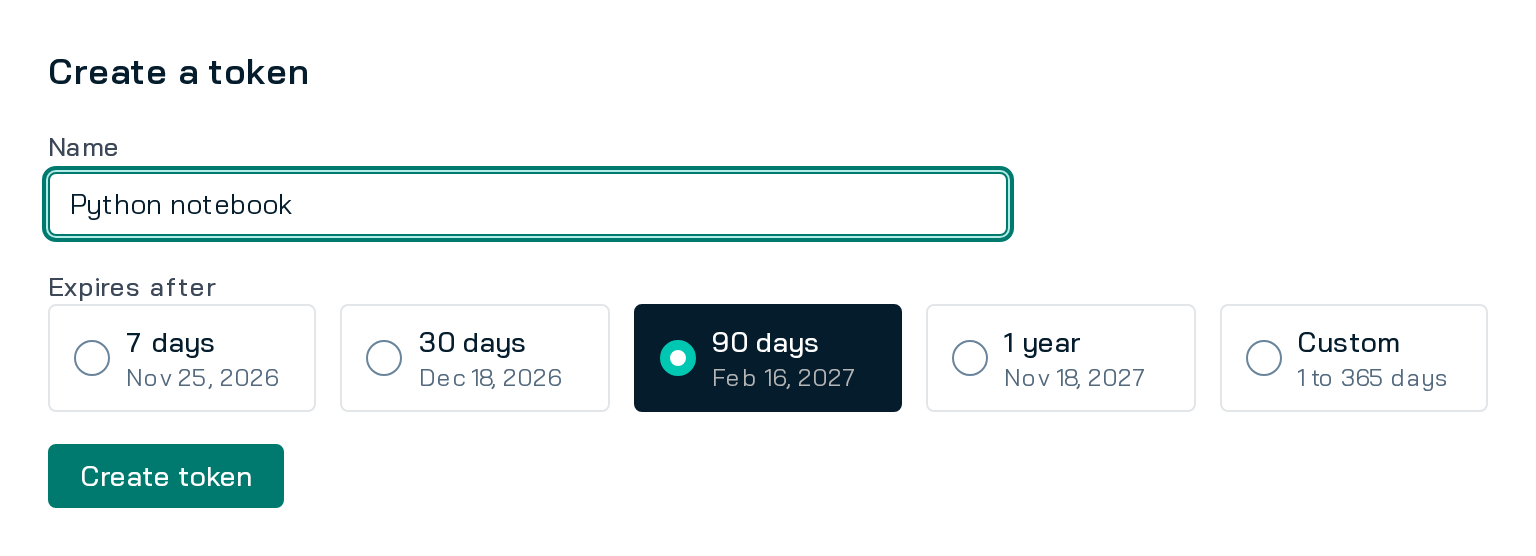
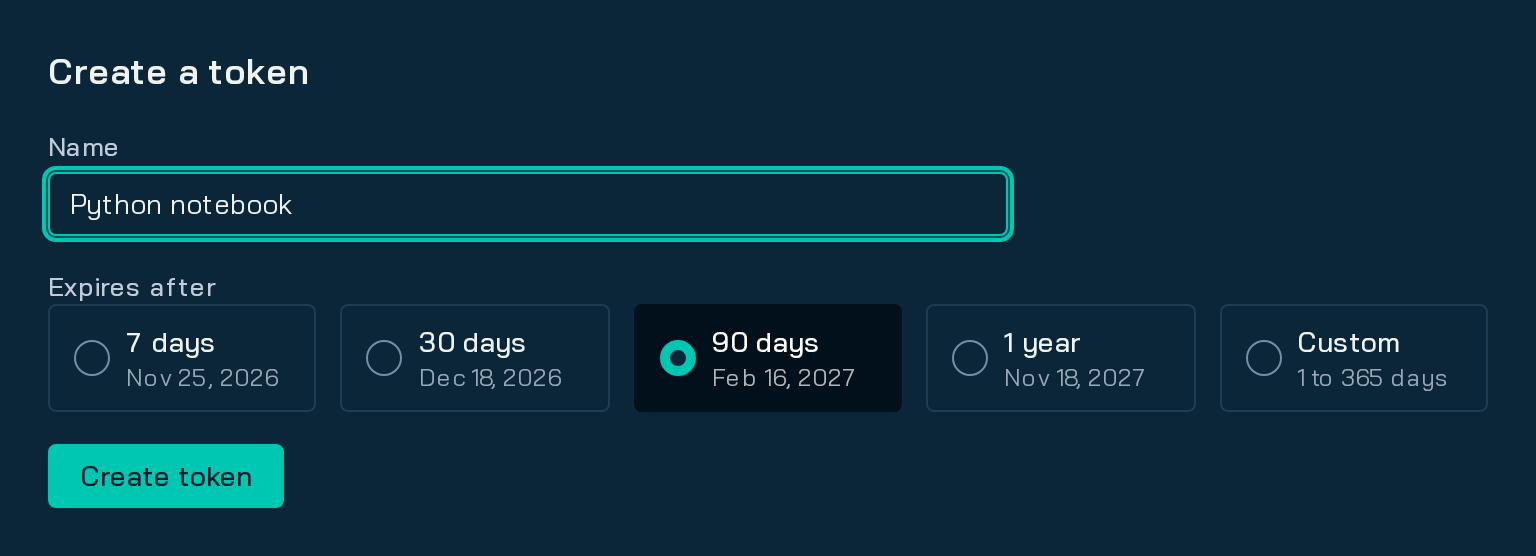
curl -sS --fail-with-body \ -H "Authorization: Bearer $NOVI_API_TOKEN" \ "$NOVI_API_BASE/me"- Create it in the Forecasts app under Settings, then API tokens. You need the Access MCP permission to see that page.
- Copy it when you create it. Novi shows it only once.
- Format: tokens start with
novi_pat_, which helps secret scanners find one committed by mistake. - Revoke it on the same page. Anything using it stops working within two minutes.
- Issued for you: an administrator with user-management rights can also issue a token for a user. It acts as that user.
- Limits: no token can create or manage tokens. Novi API tokens don’t work on the EVA MCP server or the EVA REST API.
Read-only service tokens not tied to a person are Planned.
Novi sign-in for assistants
Section titled “Novi sign-in for assistants”Your assistant signs you in with your Novi login; you paste no token.
- Add the server URL to your assistant.
- Your browser opens Novi sign-in. Sign in as usual.
- Novi’s consent page shows the client, the product, your company, your email and how long the sign-in lasts. Approve it.
- The assistant can now use that product at your company, through its MCP server only. The sign-in does not work on Novi’s REST APIs or other products.
You need Access MCP and the product’s own permission. Supported clients: Claude (claude.ai and Claude Desktop), Claude Code and OpenAI Codex. Sign-in uses OAuth 2.1 with PKCE. Setup: Connect an assistant.
EVA Developer API Token
Section titled “EVA Developer API Token”Create it on EVA’s Organization Settings page and send it in the x-api-key header. It acts for your EVA organization.
curl -s "$NOVI_EVA_API_BASE/v1/data/fields?group=Header" \ -H "x-api-key: $NOVI_EVA_API_KEY"NOVI_EVA_API_BASE is the base URL on the EVA REST API page.